Overview
Claude is one of the fastest ways to work with Provalytics data without leaving your normal workflow. Once connected, Claude can help your team inspect performance, summarize findings, pressure-test recommendations, and answer questions from live Provalytics data instead of static exports.What you need
Before starting, make sure you have:- access to the
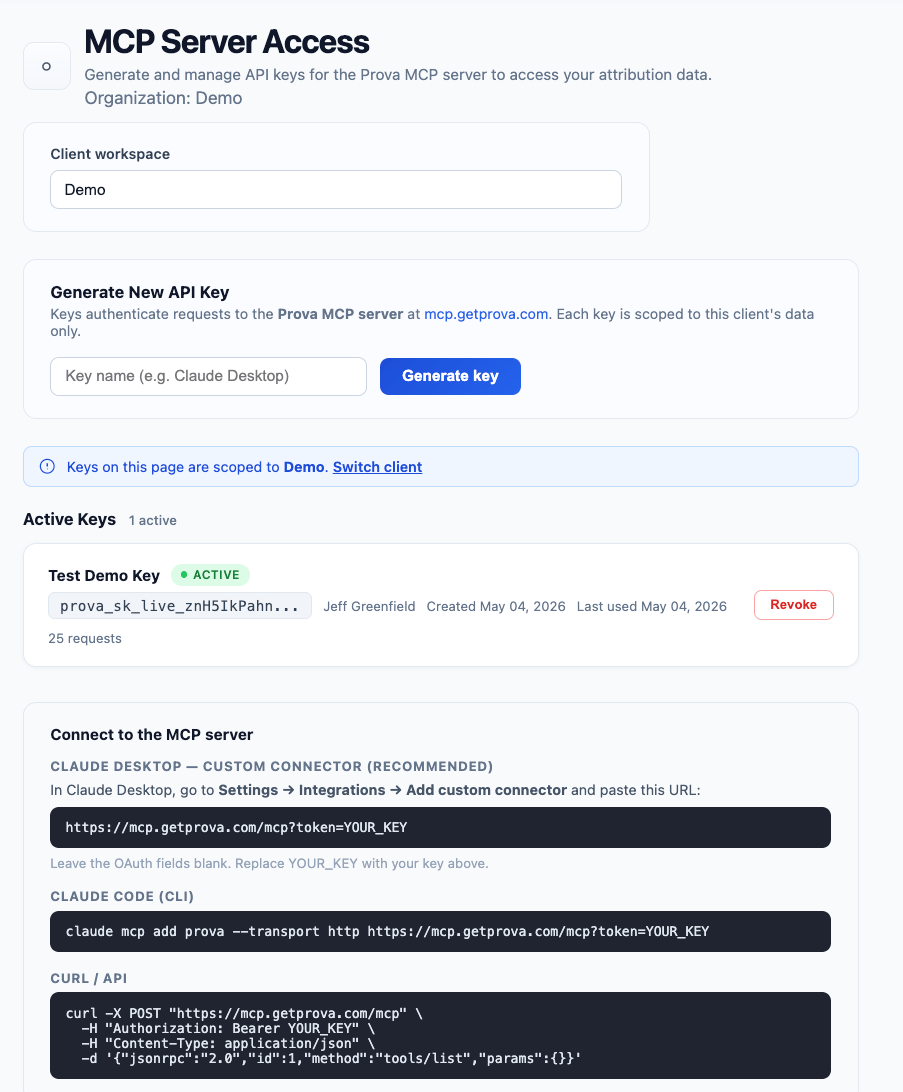
MCP Server Accesspage in Provalytics - the correct client workspace selected
- a user-specific API key
- Claude access that supports custom MCP connections
Step 1: Generate your Provalytics API key
In Provalytics:- Open
MCP Server Access - Confirm the correct client workspace is selected
- Enter a key name such as
Claude DesktoporClaude Code - Click
Generate key
Step 2: Connect in Claude Desktop
For Claude Desktop, use the custom connector path shown on the MCP access page. In Claude Desktop:- Go to
Settings - Open
Integrations - Choose
Add custom connector - Paste the Provalytics MCP URL shown in your workspace
https://mcp.getprova.com/mcp?token=YOUR_KEY
Replace YOUR_KEY with the API key generated for your user.
This pattern is intended for connector environments that expect the token to be embedded in the connection string. If your Claude environment supports a more structured token field, follow the connector instructions provided there.
Leave OAuth fields blank unless your Claude environment specifically requires something different.
Step 3: Connect in Claude Code
For command-line workflows, Claude Code can connect to the same client-scoped MCP server. Use the command shown on the MCP access page. A common compatibility example is:YOUR_KEY with your own user-specific key.
Step 4: Test the connection
After setup, ask a few basic questions to confirm the connection is working, such as:- what are my top channels by incrementality this month?
- what does the optimizer recommend next?
- how well did the latest model fit actual results?
Security notes
- each user should create their own key
- keys are read-only
- keys are client-scoped
- keys should be revoked when no longer needed
- treat connector strings containing keys as confidential
MCP Server Access page.
What Claude can help with
Claude is especially useful for:- turning dashboard findings into client-ready summaries
- checking campaign performance without exporting files
- reviewing recommendations before meetings
- comparing modeled outcomes, efficiency, and forecast signals quickly